October 23, 2025 · 15 mins read
Santosh Kumar
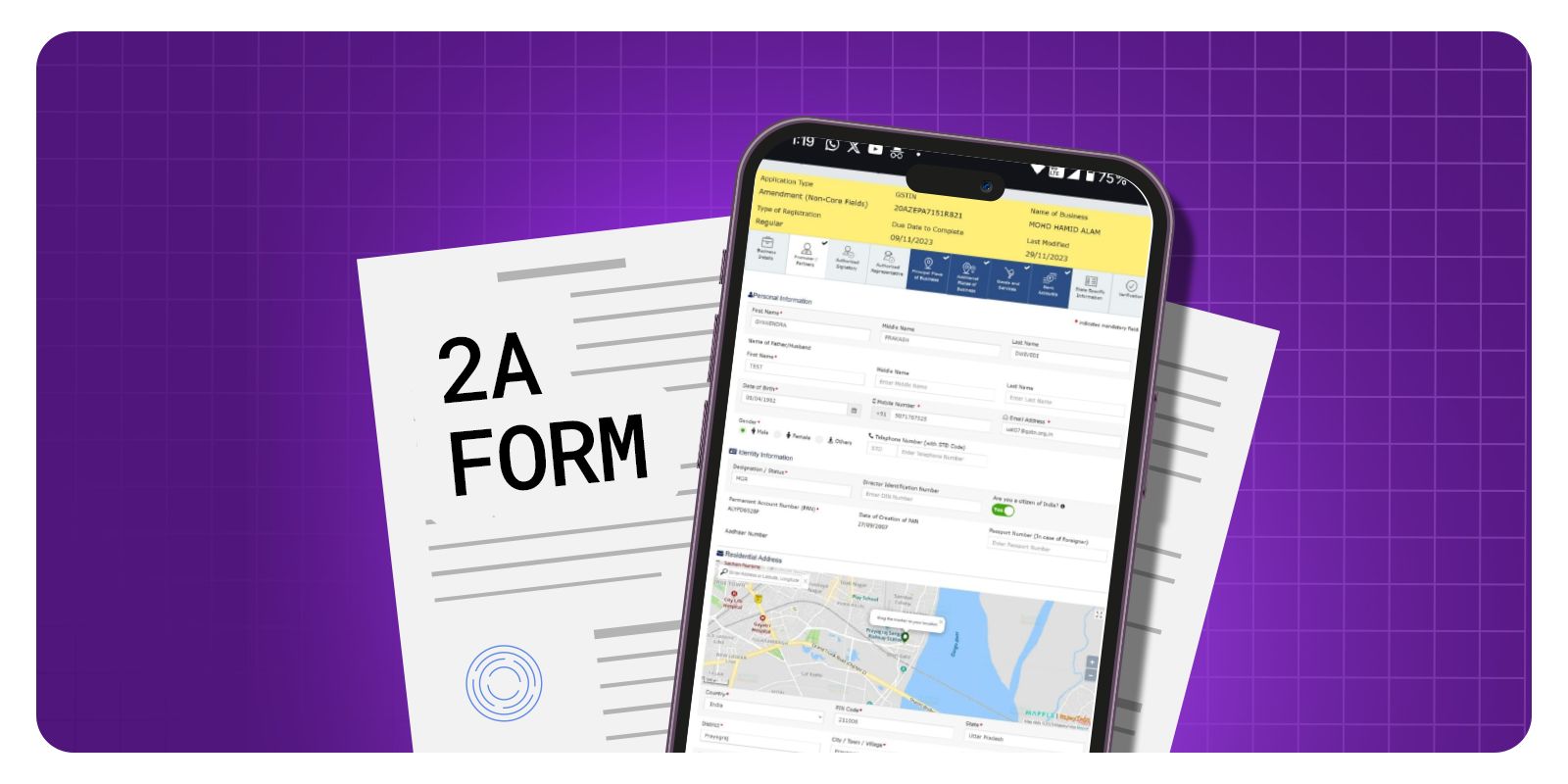
GSTR-2A is a dynamic auto-drafted statement of input tax credit (ITC). It reflects all the purchases made by a taxpayer during a particular period, as filed by its suppliers. The details appearing in GSTR-2A are auto-populated from the GSTR-1 filed by all the suppliers of a taxpayer. Currently, a taxpayer can download GSTR-2A month-wise only if there are more than 500 invoices in GSTR-2A. The GST-registered businesses must reconcile GSTR-2A and the purchase data to claim the maximum eligible Input Tax Credit (ITC). A taxpayer has to reconcile the downloaded GSTR-2A data with their purchase data manually, which is time-consuming. Instead, using an automated reconciliation software or tool will make this task easier.

GSTR 2A is a return containing details of all the inward supplies, TDS and TCS. GSTR 2A is auto-populated based on the following –
1: A supplier saves details or submits or files their GSTR-1 & GSTR-5 for all the B2B transaction details.
2: ITC distributed by ISD while submitting GSTR-6
3: TDS and TCS details based on GSTR-7 & GSTR-8 filed by dealers who deducted TDS/ TCS.
4: Details of the import of goods from overseas, on a bill of entry, as updated on the ICEGATE Portal of Indian Customs.
5: It is a read-only return and cannot be filed on the GST portal. Instead, the taxpayer can only view or download the same for every month in a financial year.
Budget 2025
1st February 2025
1: Amendments in Section 34 of the CGST Act, 2017: The FM amended the Proviso to sub-section (2) to explicitly provide for the requirement of reversal of corresponding ITC in respect of a credit-note. It means if the supplier issues a credit note to reduce their tax liability, the recipient must reverse the corresponding ITC if already availed.
2: Amendments in Section 38 of the CGST Act, 2017: Section 38(1) is being amended to omit the expression "auto-generated", indicating that the ITC statement, i.e. GSTR-2B, may no longer be entirely system-generated. Businesses may now need to validate and reconcile invoices and ITC through the Invoice Management System (IMS) rather than relying solely on system-generated data. Also, a new clause (c) to sec 38(2) is added, allowing the government to specify additional details in the ITC statement through rules.
Also Read: Difference Between Annual Fee and Joining Fee
GSTR-2A is a dynamic return. In other words, the details may get changed whenever the supplier revises invoice details through amendments in the subsequent tax periods.
Therefore, since August 2020, the CBIC has introduced the GSTR-2B return, which is a monthly return auto-drafted for the inward supplies and ITC and is static in nature. It means the contents of GSTR-2B for any month remain unchanged. Accordingly, the taxpayers must refer to GSTR-2B for ITC reporting in GSTR-3B in every tax period (monthly/quarterly) instead of relying on GSTR-2A.
On the other hand, GSTR-2A holds importance in reconciling or matching ITC details across tax periods while finalising the accounts of a financial year.
However, there are certain details present only in GSTR-2A and not in GSTR-2B that may have to be referred to, such as the TCS and TDS credit received.
Also Read: Foreign Transaction Fees on Indian Credit Cards
Here is a step-by-step guide on how to file GSTR 2A –
Step 1 – Log in to the GST Portal.
Step 2 – Go to Services. In the drop-down, click on Returns > Returns Dashboard.
Step 3 – Select the Financial Year and the Return Filing Period from the drop-down. Click on the ‘Search’ button.
Step 4 – Click on the ‘View’ button in the tile GSTR-2A.
Step 5 – The GSTR2A – auto-drafted details are displayed.
Step 6 – Under Part A, click on B2B Invoices. The details on this page will be auto-populated based on the returns filed by the suppliers.
Click on GSTIN to view the invoices uploaded by each supplier.
Step 7 – Under Part A – Amendments to B2B Invoices displays the invoices that have been amended by the suppliers in their GSTR 1 or GSTR 5.
Step 8 – Next is Credit/Debit Notes under Part A. This covers all the credit notes or debit notes added by the suppliers. Click on the tile to view GSTIN-wise details of debit/credit notes.
Click on the GSTIN to view the debit/credit notes in further detail.
Step 9 – Amendments to Credit/Debit Notes is the next tile under Part A. This contains details of all the amendments made by the suppliers to the credit/debit notes. Click on the tile to see supplier-wise details.
Step 10 – The ISD Credits tile in Part B is the next tile. The details inside this tile are auto-populated based on the GSTR 6 filed by an Input Service Distributor. Likewise, make use of the amendment to ISD credits for any revisions.
Step 11 – The TDS Credits tile under Part C of GSTR 2A will get auto-populated based on GSTR 7 filed by the dealers who deduct TDS.
Step 12 – Part C TCS Credits is the next tile. This contains details of TCS collected by dealers. The details in this section are auto-populated based on the GSTR 8 filed by the TCS collector.
Step 13 – Part D will contain the details of the import of goods from overseas on the bill of entry.
Also Read: Best Spending Categories to Earn Maximum Rewards
The taxpayer has to download the GSTR-2A if the number of invoices is more than 500. One must have the GST offline tool installed on the system to be able to use this file. Here is a step-by-step guide to download the GSTR-2A.
Step 1 – Click on the ‘Download’ button on the GSTR-2A tile.
Step 2 – Click on the 'Generate JSON file to download' or 'Generate an Excel file to download' button to generate data in the JSON or Excel formatted file. The generated JSON file must be opened in the Returns Offline Tool, available on the GST portal for download.
Step 3 – Click on the hyperlink “Click here to download JSON -File 1” once it appears.
Also Read: Should You Use a Credit Card for High-Value Purchases?
1: You can access B2B Invoices in Part A by clicking on GSTIN to review supplier-uploaded invoices, automatically filled based on your filed returns. In addition, in Part A, you can also view Amendments to B2B Invoices, seeing modifications made by suppliers in their GSTR 1 or GSTR 5. Furthermore, you can proceed to Credit/Debit Notes in Part A, exploring added credit/debit notes by suppliers. Click on the tile for GSTIN-specific details.
2: Check Amendments to Credit/Debit Notes in Part A for details on changes made by suppliers to credit/debit notes. Click on the tile for supplier-wise details.
3: In Part B, you can further explore ISD Credits, where details are automatically populated from the GSTR 6 filed by an Input Service Distributor. Use the amendment option if necessary.
4: In Part C, you can find TDS Credits auto-populated from the GSTR 7 filed by dealers deducting TDS.
5: You can see the TCS Credits in Part C for details on TCS collected by dealers, automatically filled based on GSTR 8 filed by the TCS collector. Hence, in Part D, you can get details of imported goods from overseas based on the bill of entry.
Also Read: When to Convert Credit Card Payments into EMI?
A taxpayer should follow the complete methods below to easily download GSTR-2A data in Excel format.
Step 1: Open an updated browser (Chrome, Firefox, IE) and explore the GST.gov.in Home Page, then log in with Your Credentials.
Step 2: After logging in to the GST Official Portal, click on the 'Returns Dashboard' Option
Step 3: Select the month and financial year for the GSTR 2A downloads in the Excel sheet. Now, click on the download button mentioned in the auto-drafted details box.
Step 4: Now, click the "Generate Excel File to Download" for the GSTR 2A file download in the Excel format.
Also, click on the Generate Excel file to generate a tab and a file download in JSON format. After choosing option one, download the offline GSTR 2A file, which will be processed in 20 minutes in Excel format.
Step 5: After the processing, you can click here to download the Excel file. 1. Click on the file download under the Generate Excel file to download.
Step 6: The downloaded and requested file will be on the official website in a zipped folder. One can have a .rar software to open the file in Excel for the GSTR 2A utilisation.
Also Read: Online Shopping with Credit Cards – Safety Tips
Form GSTR-2A is an auto-generated document that lists all the purchases or inward supplies based on transactional data uploaded by suppliers. The document can assist businesses in verifying input tax credit claims and reconciling their purchase records under the Goods and Services Tax system in India. By downloading the GSTR-2A in Excel format, taxpayers will have an easier time analyzing and reconciling data. To download Form GSTR-2A from the GST Portal in Excel format, taxpayers must enter their username and password to log in. Once logged in, they can navigate to the "Services" tab, select "Returns," and locate "Returns Dashboard," where they can select the financial year and return filing period. When the dashboard opened, taxpayers will see a "GSTR-2A" option for viewing the details of the purchases uploaded by their suppliers, there will be a "Download" button that they can click to download the report in Excel format will be created.
To be able to access the GSTR 2A Report from the GST Portal (to download your GSTR 2A Report) there are certain requirements/documents that need to be in place prior to being able to access your GSTR 2A Report online. The most essential requirement is you must have an active GST Registration along with valid GST portal login credentials (username & password) to access the portal to access your GSTR 2A Report. In addition, you will need to know which financial year & month that you want to download the GSTR 2A Report for, and in some cases you may require a good internet connection, and your registered mobile number/email address as these will be used for verification purposes.
It is very helpful for a taxpayer to have accurate records of purchases (e.g., Purchase Invoices, GSTIN, etc.) to successfully reconcile after they have downloaded their GSTR 2A Report from the GST Portal.
Taxpayers may collect their GSTR-2A in PDF Format for easy reference and record-keeping in addition to Excel by performing the same process as Excel. Navigate to the Returns Dashboard by signing into the GST Portal and choose the appropriate financial year/month. Open the relevant GSTR-2A section to view the statement information. In there, the user will find a Download option that will allow them to download their GSTR-2A document in PDF format so that it can be saved/printed for reference purposes.
The usefulness of the PDF Format for documentation purposes, internal audits, and maintaining compliance records will be understood by all taxpayers. The PDF Format does not support a detailed analysis of transactions, however, its provides a structured summary of all purchase transactions, and is therefore a vital source of information until GSTR-2A’s are converted to PDF Form by the GST Portal.
Businesses can download the GSTR-2A statement from the GST Portal. They can access a specific month’s data or a complete year's data, as needed. This enables taxpayers to accurately track their transactions and periodically reconcile them with their books. To download GSTR-2A data for a specific period (month/year), log into the GST Portal and navigate to the Returns Dashboard. Select the financial year and return period you wish to download. Select GSTR-2A. You will now see your GSTR-2A statement. You can select the format you wish to download the file in: csv, pdf, txt, etc. and click the download button.
Repeat this process for each relevant month to complete the complete financial year. Some businesses consolidate the monthly statements into one file using accounting tools or software to prepare for the annual reconciliation and reporting of their total revenue.
By regularly downloading GSTR-2A, businesses can monitor their input tax credit claims more easily and reduce the likelihood of discrepancies when filing their returns.
In the GST system, GSTR-2A is a very important document that helps you comply with the rules adequately and avoid further complications. It helps you make your GST Return filing easier and accurate. And as we know, transparency is the core objective of GST, so this may help you profoundly.
Take your time downloading GSTR2A, as it is critical to help you stay GST compliant for your business. It helps in verifying the Input Tax Credit, which you are claiming, and also helps reconcile with your supplier data. This process can be easy and simple by following the steps as per this guide.
Do not forget that proper reconciliation helps you to avail the right ITC as well as keep your business safe from penalties and audits. Therefore, it becomes important to download and check your GSTR2A on a regular basis so as to be updated with your tax liabilities.
Form GSTR-2B is an auto-drafted ITC declaration that will be created for all enrolled persons on the grounds of the information provided by his/her suppliers in their respective Form GSTR-1 & Form GSTR-5 and ITC obtained through Form GSTR-6. The statement will show the availability of Input Tax Credit to the enrolled person upon every document filed by his/her suppliers and the Input Service Distributor (ISD). Form GSTR-2B also holds information on the import of goods from the ICEGATE system, including inward supplies of goods collected from SEZ Units / Developers
Form GSTR-2B should be practised by taxpayers to get the right input tax credit in particular segments of Form GSTR-3B.
No, one should not file Form GSTR-2B. It is only a read-only static auto-drafted ITC statement, which shows the availability of Input Tax Credit upon specific documents filed by the suppliers and ITC received through ISD
The information filed in Form GSTR-1 & 5 (by supplier) & Form GSTR-6 (by ISD) will display in the succeeding open Form GSTR-2B of the beneficiary regardless of the supplier's/ISD's date of filing. For e.g., if a supplier files a document INV-1 dated. 15.07.2020 on 11th August, this will show in GSTR-2B of July (generated on 12th August). However, the document is filed on 12th August 2020, the document will be displayed in Form GSTR-2B of August (generated on 12th September)
You can find your GSTR-2A summary, by logging into the GST portal, selecting "Returns Dashboard", choosing the financial year and time-period, and clicking on the GSTR-2A link. The summary will show you all purchases made with input tax credits.
To open the GSTR-2A JSON file in Excel, you first need to convert the file to an appropriate format using either GST Offline tools or compatible software applications. After you convert the file, you can export or import into Excel for further analysis or reconciliation.
You can download GST GSTR-2B from the GST portal, by selecting the relevant tax period and month in the Returns Dashboard. Each month must be downloaded individually, and the records must then be compiled into one spreadsheet for annual reference.
Currently, the GST portal does not offer a single download option for all of your returns at once; therefore, you must download each return separately using the Returns Dashboard, by selecting the applicable financial year and return type. If you are using third-party accounting software, there may be solutions to better organize and hold your return data.



Contact

care@zetapp.in
Social


Build and Maintain a 750+ Credit Score